

Feature
Lessons and Homework
Course content, assessment and homework on one page.
Last updated: August 17, 2026
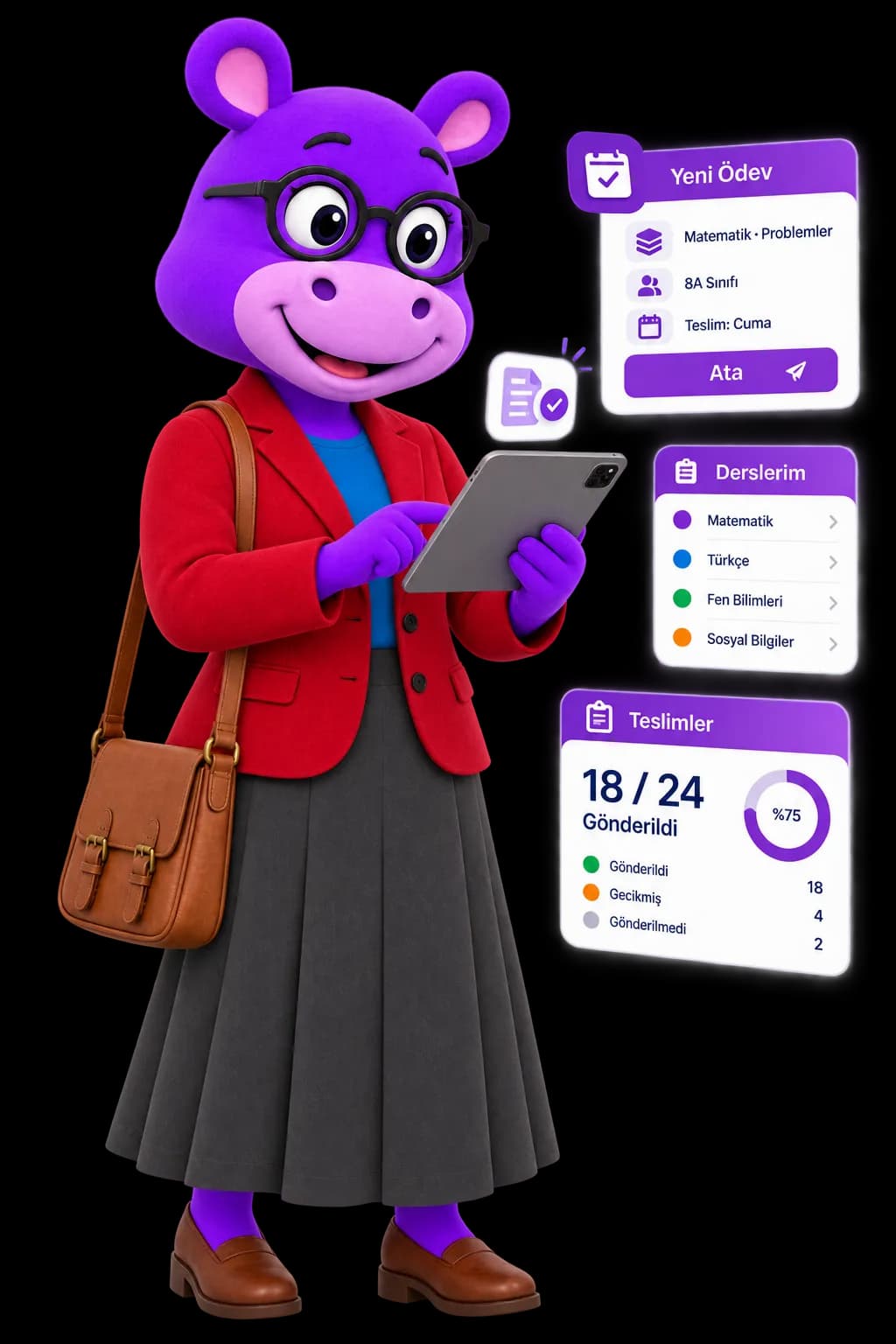
Everything under a course sits on a single page: videos, documents, lesson sessions, screening tests and branch mock exams. Students keep their own Notebook on that same page; teachers do not have that area. On the homework side, the teacher defines an assignment and gives it to a class or to a single student; submissions are tracked as Submitted, Under review, Overdue and Not submitted. Every submission carries a score and a teacher note, and the result flows into the student's topic-level mastery percentage. Content, assessment and feedback stay in one flow, so a teacher is not shuttling between three separate tools.
Live preview
First see the course page through two sets of eyes — notice why the Notebook is student-only. Then switch to Assignments, open a submission and score it, watching how the status is derived.
Grade 8 Maths · course page
Lecture videos stay attached to the course; students watch them straight from the course page.
The Notebook tab does not exist in the teacher view — it is the student's own space.
Step 1/3 · Walk the course page
Material, assessment and the Notebook share a page; switch role to see the difference.
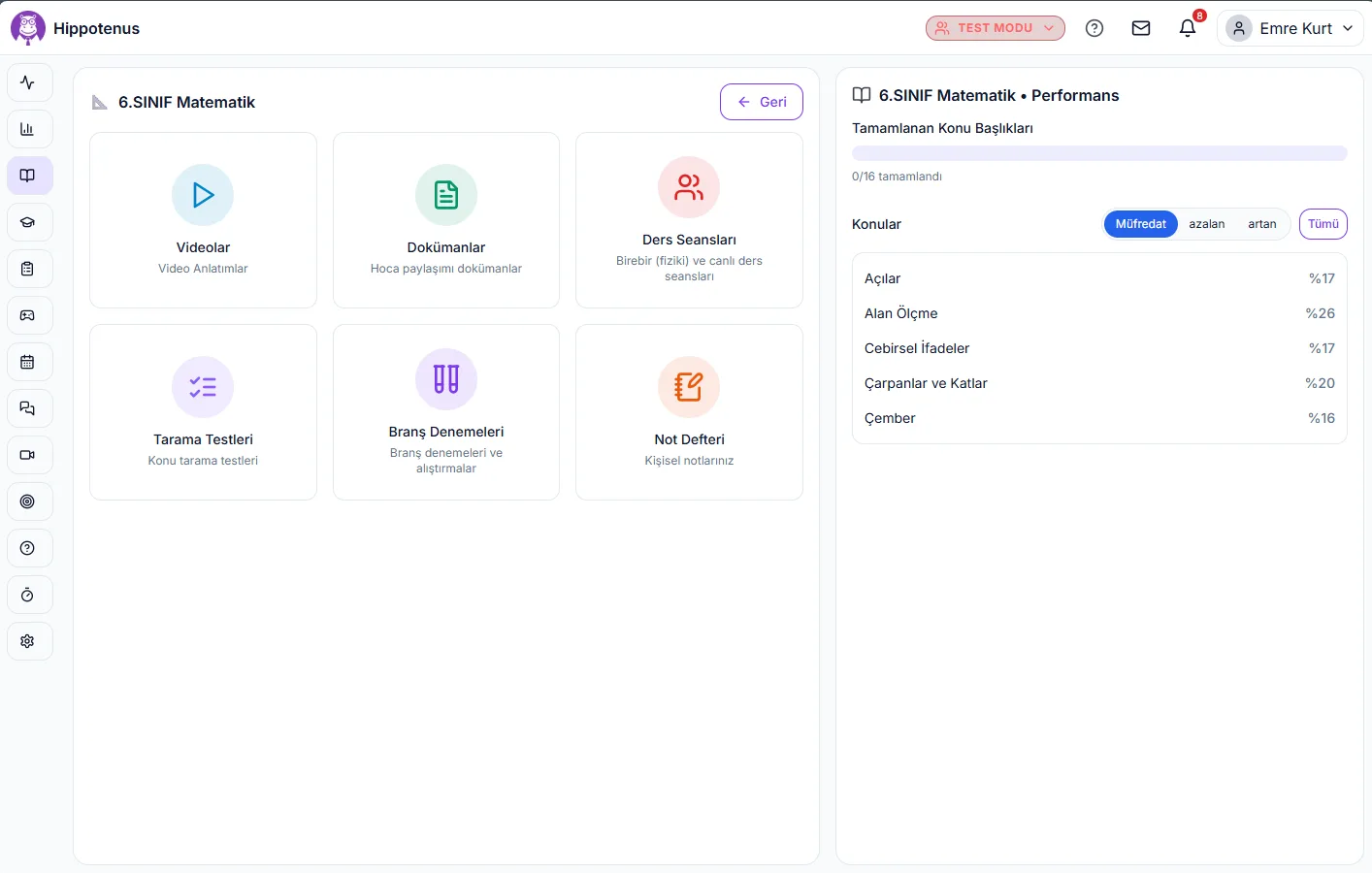
In the real product: videos, documents, lesson sessions, screening tests and branch mocks attached to the course; on the homework side, file-format limits, assignment to a class or a single student, and overdue notifications to parents.
How it works
Build the course and its content
Videos, documents and lesson sessions are added to the course. Content is grouped into categories, so a student opening the course page finds all of it in one place.
Attach assessment to the same page
A screening test measures the topics you pick; a branch mock measures the overall level of a single subject. Both are created from the course's own page, with no detour into a separate exam module.
Define and assign the homework
You set the title, description, due date and accepted file formats, then assign it to a class or to a single student.
Track submissions from one screen
The assignment list sits on the left and the selected assignment's detail on the right: who submitted, the due date and each submission's status share one screen.
Score it and leave a note
You give the submission a score and write a teacher note. The student sees both in their own assignment detail, and the result feeds the topic-level mastery percentage.
Material view tracking
Videos and documents are attached to the lesson; when a student opens a course video the view is recorded, and the teacher can see per student who opened each material. You know who watched before you assign the homework.
What it offers each role
Teacher
Manages the course's material, screening test and branch mock from a single page; defines and assigns homework, filters submissions by status, and writes scores and teacher notes.
Student
Reaches the course's videos, documents and tests from one place and keeps a personal Notebook on the same page; uploads homework and sees the score and teacher note in the assignment detail.
Parent
Follows their child's submission status and is notified when an assignment is missing or overdue.
- A course's videos, documents, lesson sessions, screening tests and branch mocks all sit on one page.
- The Notebook is student-only: they keep their own notes on the course page, and teachers have no such area.
- Homework can go to a class or to a single student; there is no second workflow to learn.
- Submissions are filtered individually as Submitted, Under review, Overdue and Not submitted.
- The homework screen uses a list-left, detail-right layout, so moving between assignments never reloads the page.
- Every submission carries a score and a teacher note, keeping feedback attached to the work itself.
- Accepted file formats are set in the assignment definition, so students cannot upload the wrong format.
- Homework results flow into topic-level mastery percentages, turning assignments into measurement rather than a separate ledger.
- Parents are notified about missing and overdue assignments.
- Lesson materials (video/document) are attached to the lesson, and video views are recorded per student.
Frequently asked questions
Either works. When defining the assignment you pick a class or a single student as the target; private tutors usually assign to one student and institutions to a class. The workflow is identical in both cases.
The Assignments screen shows the assignment list on the left and the selected assignment's detail on the right. The detail lists who submitted, the due date and each submission's status (Submitted, Under review, Overdue, Not submitted).
You score the submission and write a teacher note beside it. The student sees both in their own assignment detail, so feedback never gets lost somewhere away from the work.
Videos, documents, lesson sessions, screening tests and branch mock exams. On the student side there is also a Notebook; teachers do not have that area.
A screening test measures the topics you select and updates topic-level progress. A branch mock measures the overall level of a single subject and is built from an exam blueprint.
Yes. Assignment quality is one of the sub-metrics in the academic dimension of the Overall Success Score, and the result also feeds topic-level mastery percentages.
Yes. Opening a course video records the view, and the material detail lists which students opened it, student by student. Document materials are not tracked this way.
Related features